On this page
All guides
“Windows protected your PC”
- Step 1:
Click More info.
- Step 2:
Check the app name says Vesper Desk, then click Run anyway.
Only run installers from the download page. The notice can appear even on signed releases while a new version builds up reputation with Windows.
Choppy or slow playback
- Step 1:
Try Performance mode, which pauses and lowers quality on tiles you are not focused on.
- Step 2:
Turn on Reduce effects in Settings → Appearance to drop the frosted blur.
- Step 3:
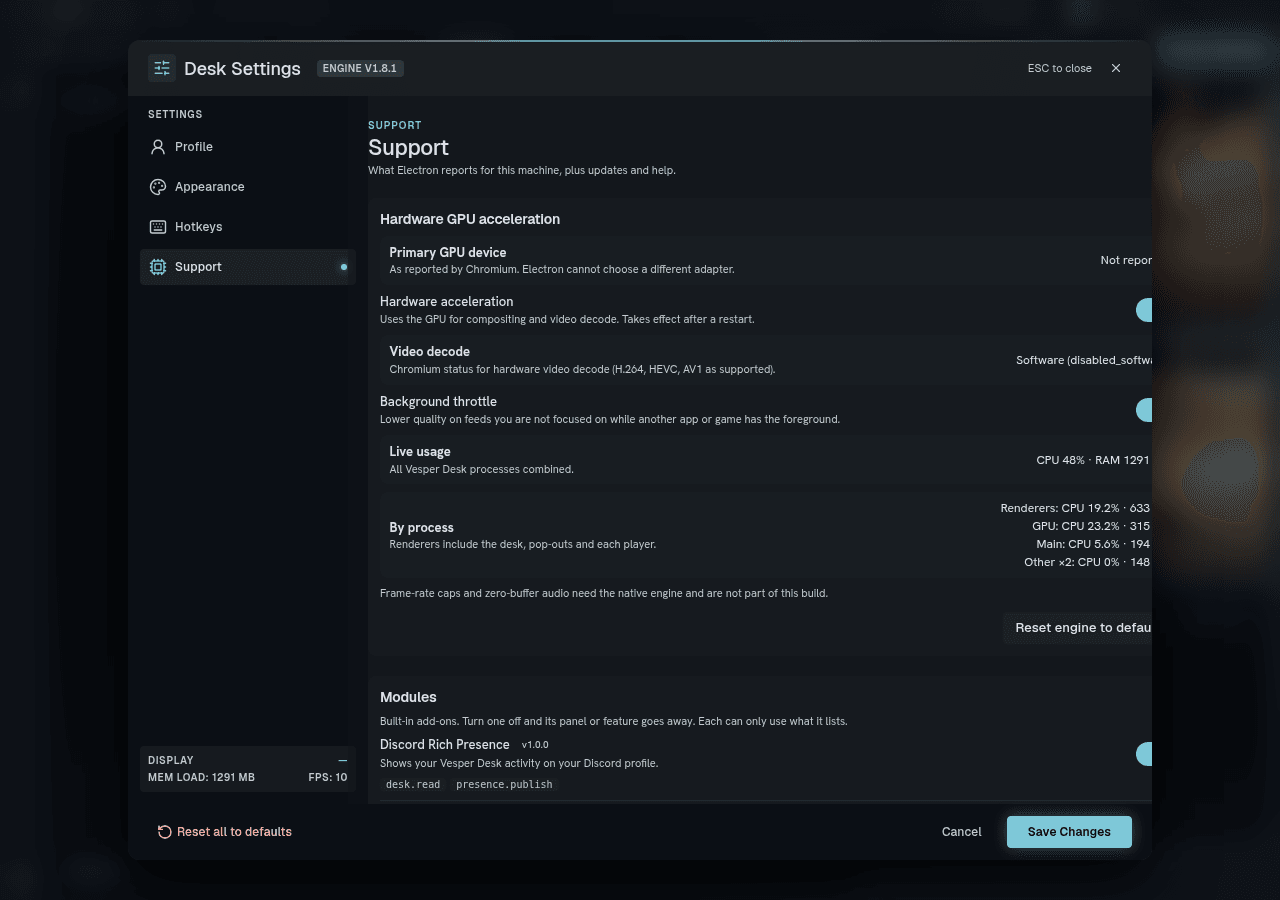
Open Settings → Support and check Hardware acceleration. Turning it on or off needs a restart of the app.
Support also shows what Windows and the app report: GPU, video decode, and live CPU and memory use.
Chat stopped updating
- Step 1:
Open Settings → Support and click Reconnect chat.
- Step 2:
If Twitch says you are signed out, choose Login to Twitch from the ☰ Account menu again.
Twitch Prime perks not recognised
- Step 1:
Open Settings → Support and click Refresh Prime session.
Send us the log
- Step 1:
Open Settings → Support → Open log folder.
- Step 2:
Attach main.log when you email support@vesperdesk.app.