On this page
All guides
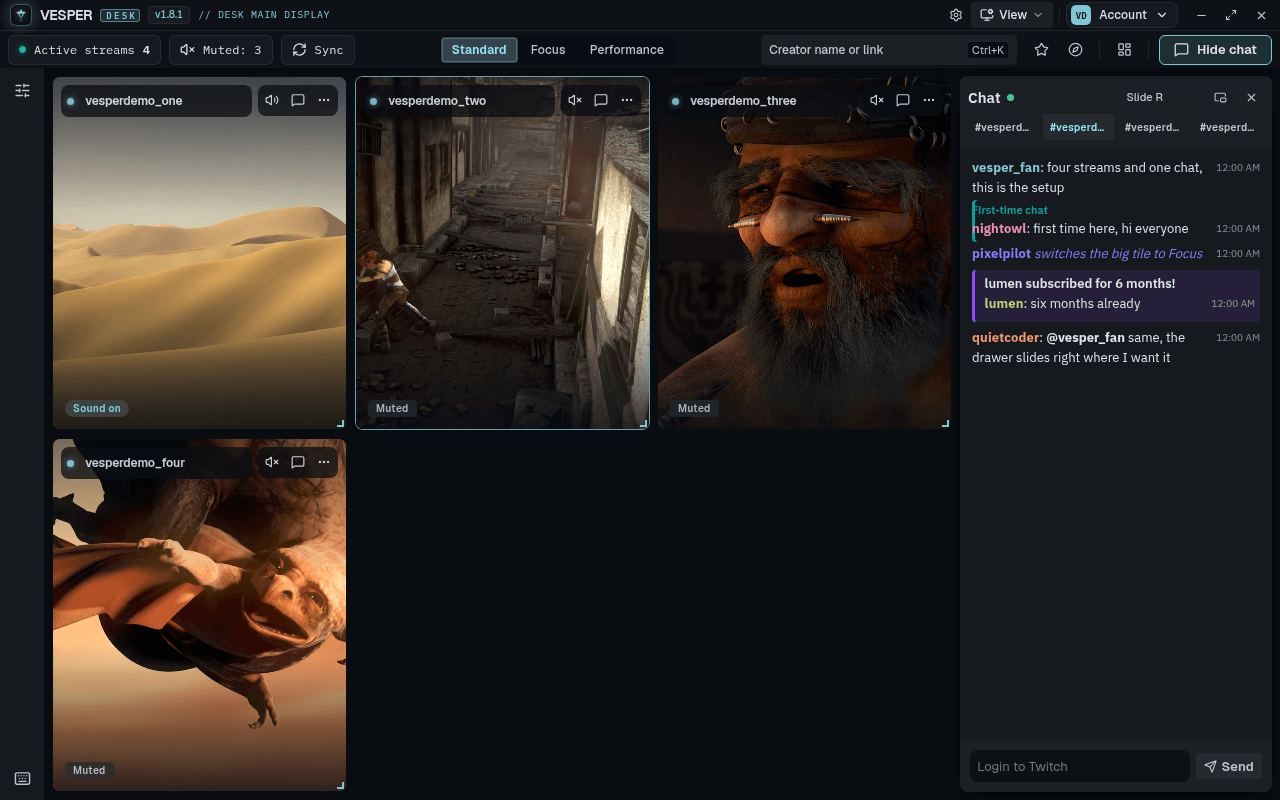
Open chat
- Step 1:
Click Open chat in the toolbar, or press Ctrl+Shift+C (Toggle chat).
- Step 2:
Click Open chat on a tile to open that channel's chat.
- Step 3:
The chat drawer pushes the desk over instead of covering it.
Move and resize the drawer
- Step 1:
Choose where it sits: Slide L, Slide R, Dock bottom or Float.
- Step 2:
With Slide L or Slide R, drag the drawer's inner edge to make it wider or narrower.
Chat like on twitch.tv
- Step 1:
Login to Twitch from the ☰ Account menu. Without it chat is read-only.
- Step 2:
Type in the box at the bottom and press Enter. Tab completes names and emotes, and the up arrow brings back what you sent.
- Step 3:
Open the emote picker for your emotes and the channel's emotes.
- Step 4:
Cheers work as on Twitch: type Cheer100 in a message. Cheermotes, badges, replies and mentions show as they do on twitch.tv.
Kick tiles get a Kick chat tab in the drawer once you Sign in to Vesper with Kick connected on your account.
Pop out chat or a stream
A pop-out is its own window you can move to another monitor.
- Step 1:
On a tile, open More and choose Pop out chat or Pop out stream.
- Step 2:
A popped stream leaves the grid until you bring it back.
- Step 3:
To bring it back, click Dock back in the pop-out, use the Redock menu in the toolbar, or choose Dock all pop-outs. Closing the pop-out window docks it too.
Pop-outs remember where you put them and whether they stay on top.