On this page
All guides
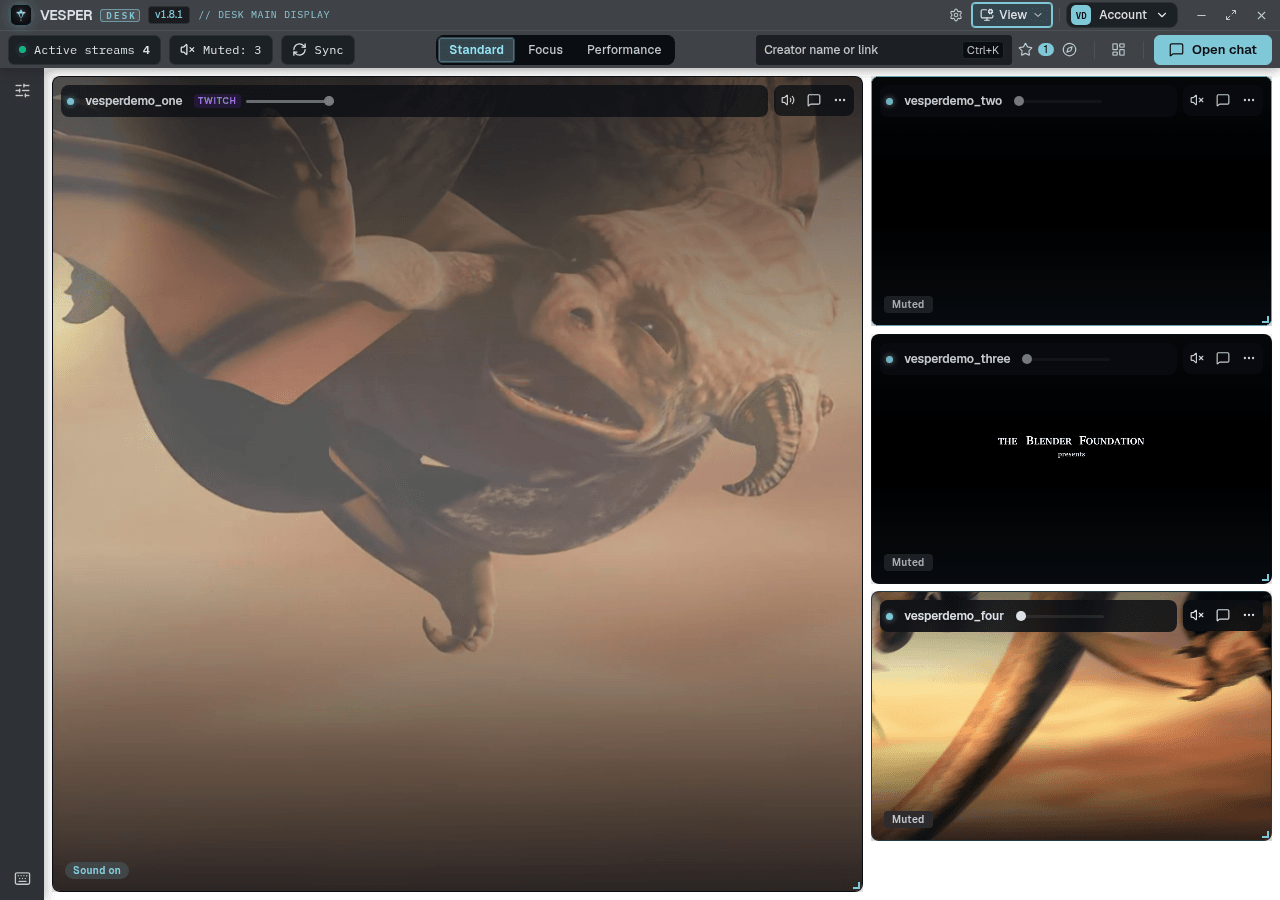
Turn on See-through mode
- Step 1:
Click View ▾ in the toolbar.
- Step 2:
Choose See-through mode. The desk window reloads once with a clear background.
- Step 3:
Empty stage space now shows your desktop, and clicks there go through to whatever is behind it.
The toolbar and the tiles stay clickable, and the window stays on top. Anything open behind the desk shows too, so check before you share your screen.
Lock the window
- Step 1:
With See-through mode on, open View ▾ and choose Lock window, or press Ctrl+Shift+L.
- Step 2:
Click-through is held on and the window stays see-through until you unlock it.
- Step 3:
Press Ctrl+Shift+L again to unlock.
Lock window only shows while See-through mode is on.
Turn it off
- Step 1:
Open View ▾ and choose See-through mode again. The desk goes back to its normal background.