On this page
All guides
Install the app
- Step 1:
Open the download page and get the Windows installer (Setup) or the Portable version.
- Step 2:
Run the installer, then open Vesper Desk from the Start menu or the desktop shortcut.
- Step 3:
If Windows shows Windows protected your PC, click More info, then Run anyway. See the note below.
Releases are signed, but Windows SmartScreen also looks at how many people have run a file, so a new version can still show the notice for a while. Only run an installer you got from the download page.
Add your first stream
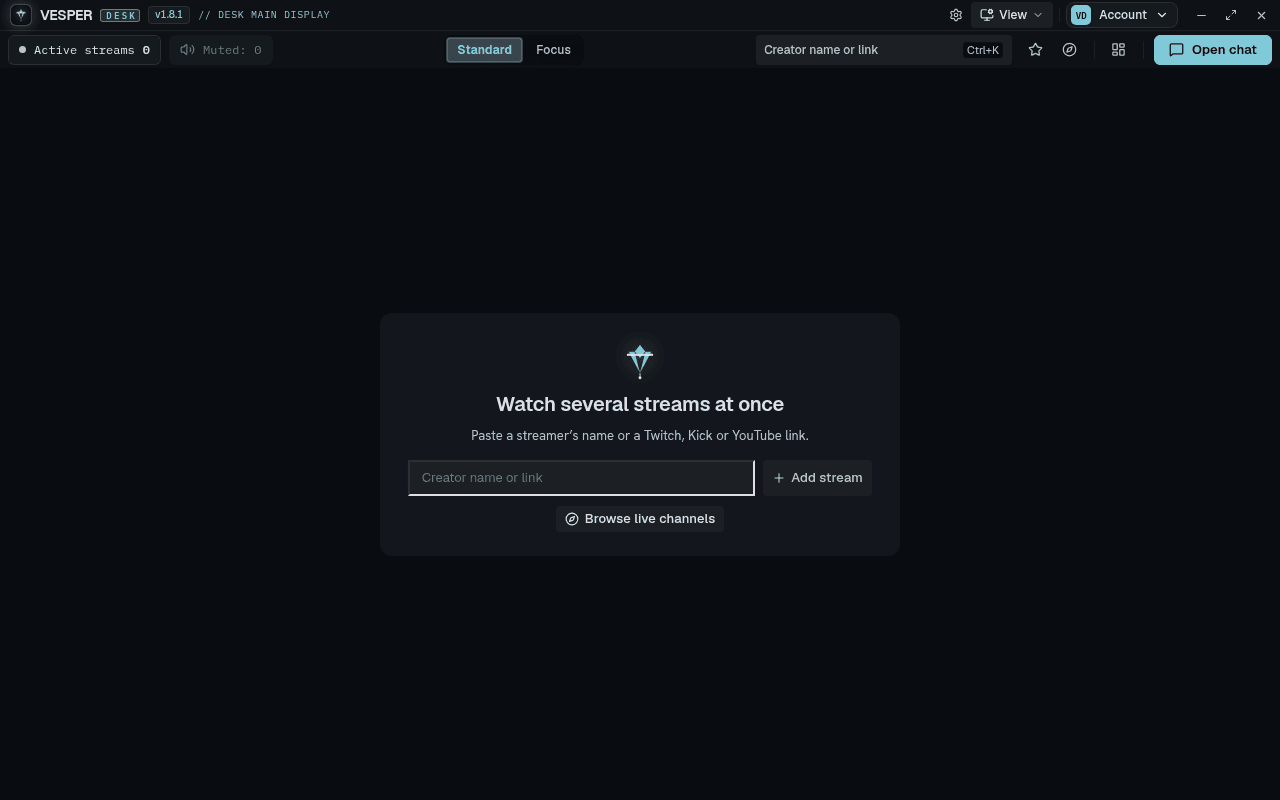
A new desk starts empty and shows the welcome card, Watch several streams at once. No account is needed to watch.
- Step 1:
Click the Creator name or link field on the welcome card.
- Step 2:
Type a streamer's name, or paste a Twitch, Kick or YouTube link, then press Enter.
- Step 3:
The stream opens as the first tile, with sound on.
- Step 4:
No idea what to watch? Pick one of the Popular live now chips (shown once you Login to Twitch), or use Browse live channels to open Discover.
Take the tour
A short tour points out the toolbar, layouts and chat. It opens on your first launch, and you can run it again whenever you like.
- Step 1:
Open the ☰ Account menu at the right of the toolbar and choose Take the tour.
- Step 2:
Or open Settings (Ctrl+,), go to Support and choose Take the tour there.
- Step 3:
Step through the highlights, or close the tour at any time. The tour does not change your desk.
Small tips also appear on their own when they apply: at two tiles you will see one about Focus and layouts, and once chat is open, one about Open chat versus Pop out chat.
Quit the app
There is no Exit button. Close the window with the Close control at the top right, or press Ctrl+Q (Quit application). Your desk is saved and comes back the next time you open it.